Hold up!
You may already be able to attach — try running EcliptV1.exe as administrator first.
Troubleshooting Guide
Having trouble launching Eclipt? Follow the steps below to resolve the most common errors.
Eclipt uses Microsoft WebView2 to render its interface. If WebView2 is missing or corrupted, the executor will fail to open. Follow these steps to fix it.
WebView2 is a Microsoft component included with most modern Windows installs, but it may be missing on fresh or stripped-down systems.
Do not use third-party WebView2 installers. Only download from the official Microsoft link above.
SSL errors usually mean Windows Security or your antivirus removed a required file, or Eclipt didn't have enough permissions to write that file in the first place.
Your antivirus may have silently quarantined a critical .exe or .txt file that Eclipt needs.
Step 1 — Check Windows Security quarantine
.exe or .txt files.Step 2 — Run Eclipt as Administrator
If Eclipt does not have write permission it cannot create the files it needs, causing SSL errors. Running as admin fixes this.
You must always run Eclipt as administrator for the attach function to work properly.
This error is caused by Windows Security blocking Eclipt. You need to disable specific protections and redownload Eclipt for it to work properly.
You must have the latest Roblox Player installed unless you are getting the version mismatch error (see below).
Fix — Disable Windows Security protections
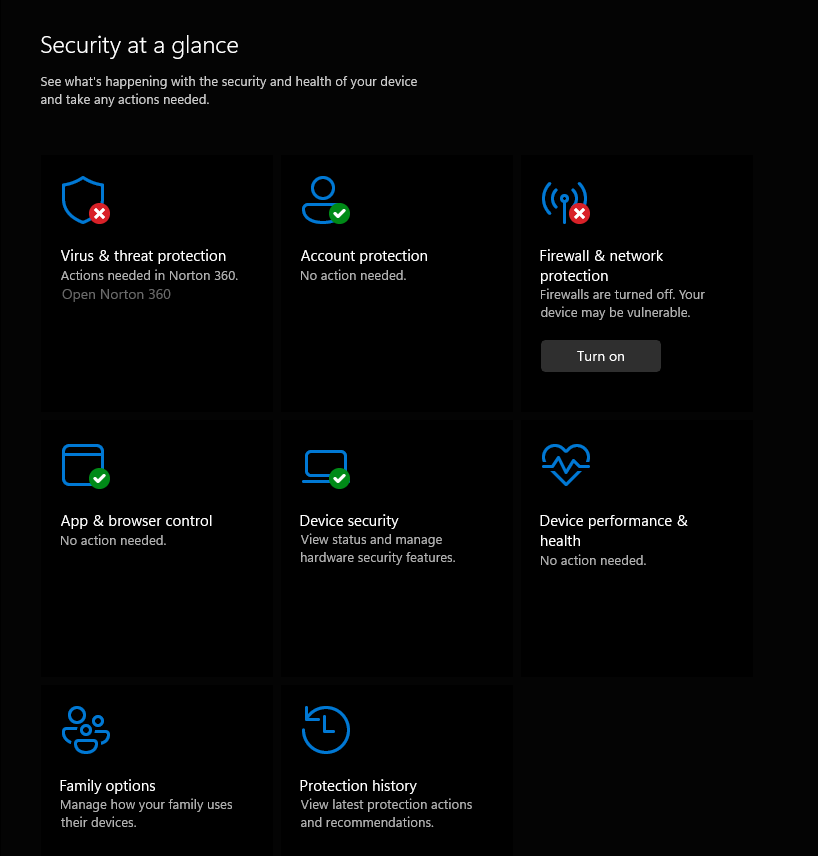
These two boxes must show a red X:
- Virus & threat protection — Turn off all protections inside
- Firewall & network protection — Turn off for all network types
.exe and select Run as administrator.After following these steps, Eclipt should launch and attach without issues. You can re-enable protections after if you want, but you may need to repeat this process after updates.
This error means the version of Roblox you have installed doesn't match the version Eclipt was built for. You need to uninstall your current Roblox and install the correct previous version.
Do not update Roblox if prompted. Installing the previous version from the link below will resolve the mismatch.
Win + I).After installing the previous version, launch Eclipt as administrator and attach as normal.
This error means another process on your PC is already using port 1337, which Eclipt needs. You need to find that process and kill it using Command Prompt.
You must run Command Prompt as administrator, otherwise these commands will not have permission to kill the process.
cmd in the Start menu, right-click it, and select Run as administrator.netstat -ano | findstr :13371234 with the PID number you found above and run this command to confirm the process name.tasklist /FI "PID eq 1234"This will output something like: node.exe 1234 Console ...
1234 with your actual PID. The /F flag forces termination immediately.taskkill /PID 1234 /FOnce the process is killed, launch Eclipt again and port 1337 will be free.
Still having issues?
Join our Discord server and open a support ticket. Include your error message and the steps you already tried.